To get started with using PubCoder, please refer to this guide for downloading, installing, and registration.
Minimum Requirements
PubCoder is a desktop application that runs on macOS and Windows. The system requirements vary depending on which operating system you use.
Minimum requirements for Mac
- macOS 11 Big Sur or later
Minimum requirements for PC
- Windows 11, or Windows 10 64-bit
- Microsoft Edge WebView2 Runtime, which PubCoder uses to display the stage and the previews. Windows 11 already includes it: if it’s missing, PubCoder asks you to install it with Windows Update or from the Microsoft website
Additional Requirements
Some features need additional software or a more recent system:
- Exporting iOS Apps requires a Mac with Apple Silicon running macOS Tahoe 26.2 or later, and Xcode 26.4 or later
- Exporting Android Apps requires Java 11 or later
- EPUB validation requires Java 8 or later
- Exporting KF8 books requires Kindle Previewer, available for free
- Importing from Adobe InDesign requires Adobe InDesign 2024 or later
- Choosing a voice to generate Read Aloud audio requires macOS 14 Sonoma or later
- The AI Assistant requires an Internet connection and an API key from an AI provider
When PubCoder requires some additional software, it will prompt to install it automatically or will give appropriate instructions on how to proceed.
Offline Usage
PubCoder can work offline, but it needs an Internet connection to verify your subscription from time to time: be sure to let PubCoder connect to the Internet at least once every two months, otherwise it will require an online check before you can use it again.
Some features always need an Internet connection: the AI Assistant, importing images from the Internet and, the first time, downloading the speech recognition model of Auto Sync.
Downloading PubCoder
If you haven’t done so already, you can download a 15-day free trial of PubCoder here. Choose your operating system, Mac or Windows, and click Download: this downloads a single file that you can use to install PubCoder on your computer.
Mac Instructions
- Double-click the downloaded DMG file
- Drag the “PubCoder” icon over “Applications”
After that you will be able to find and launch PubCoder from your Applications folder. You can trash the DMG file after that.
Windows Instructions
- Double-click the downloaded EXE installer file
- Follow the instructions on screen to install PubCoder
You can trash the EXE installation file after installation is finished.
Register and start your free trial
When you launch PubCoder for the first time, you will see a window to sign in or create a new account. Creating a PubCoder account is quick and completely free and will allow you to use the software for free for 15 days.

Once registered, your trial will start automatically and you will be able to use all the standard features of PubCoder for the trial period, and try PubCoder Pro too.

Purchasing PubCoder
Enjoyed using the trial and looking to purchase? Great choice! You can purchase PubCoder securely from our store. Just sign in with your account and click Get a License.
PubCoder is a subscription-based application: you can purchase a monthly or yearly subscription and use the latest version of PubCoder – upgrades are free – on any number of projects and export them in every supported format. We don’t take any share of the revenue from your creations, and your exported files will continue to work forever, even if your subscription expires.
Once your purchase is completed, your subscription is immediately available in PubCoder and you can start working right away!
If you’re looking to order multiple copies of PubCoder for your company or business, we offer a team subscription with special volume pricing depending on your quantity. Seats in a team subscription can be linked to a certain number of accounts or physical machines, and seats can be managed from your account.
Are you in education? Contact us and apply for a discount of up to 50%; one of our friendly support staff will get back to you with your request.
PubCoder Pro
PubCoder Pro adds the features that save you the most time on long or complex books:
- AI Assistant: builds and edits your project from a chat, following your requests in your own words
- Import from Word, TXT, RTF and Markdown: flows the text of a document into fixed-layout pages
- Import from EPUB (Reflowable): turns a reflowable EPUB into a fixed-layout edition, chapter by chapter
- Import from Adobe InDesign: converts your InDesign layouts into PubCoder pages
- Import from PDF: creates a page for every page of a PDF file
- Read Aloud Auto Sync: automatically syncs the text of a page with its read aloud audio
PubCoder includes a 7-day trial of the Pro features, which you can start whenever you want, during your trial or with a standard subscription: when you use a Pro feature, the Upgrade to PubCoder Pro window appears, and you can click Try for 7 days, or Buy PubCoder Pro to upgrade your subscription.
You can find more information on PubCoder Pro on our pricing page.
Using PubCoder on Multiple Computers
Your paid PubCoder subscription allows you to install and use the software on any number of computers you own. The only limitation is that it can be used on one computer at a time: if you launch the application on another computer, PubCoder is signed out on the first one. To keep working there, save your work, then quit and reopen PubCoder.
Managing your Account
The home of your PubCoder account is account.pubcoder.com: sign in there to change your account settings, see and manage your subscriptions and the seats of a team subscription, buy a new subscription or upgrade to PubCoder Pro.
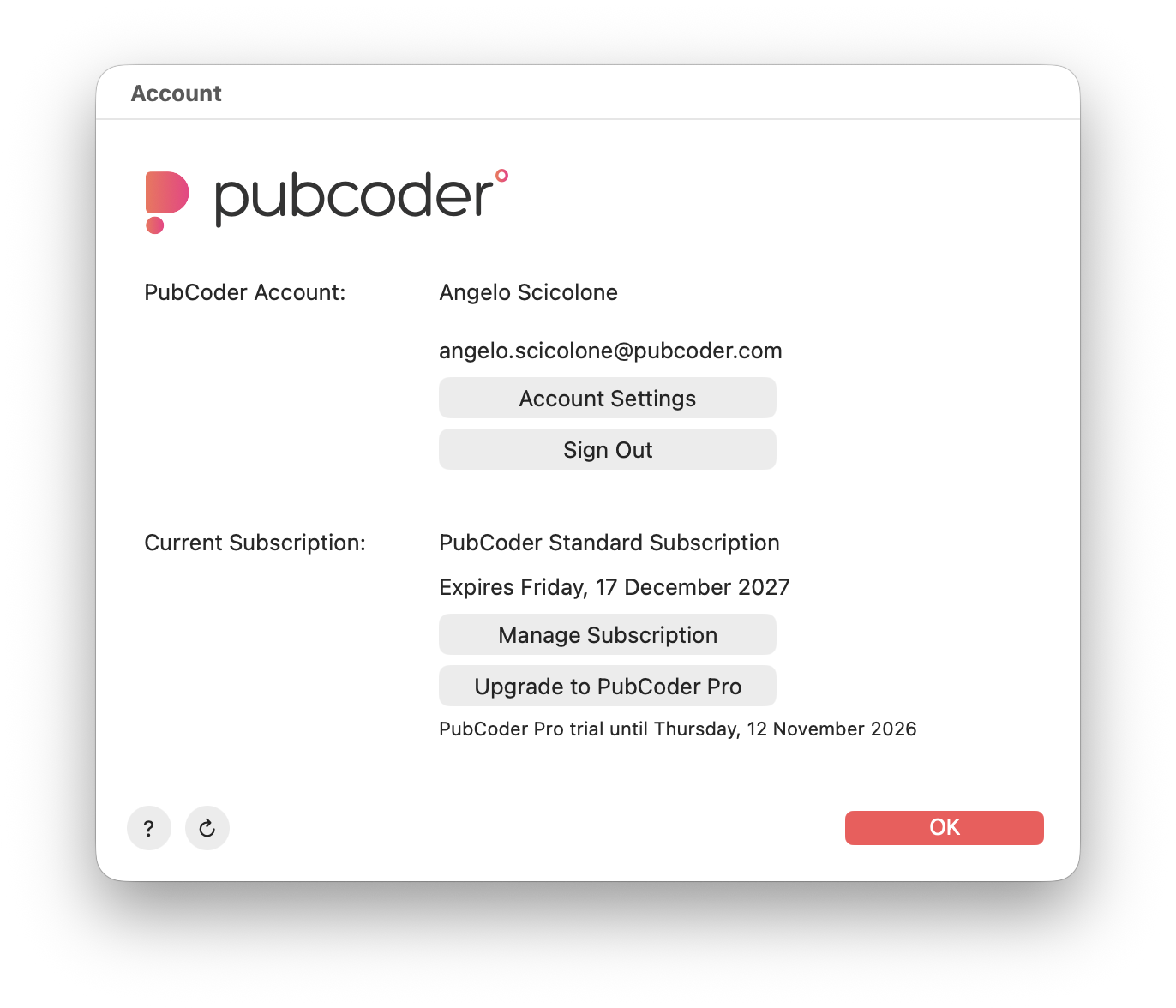
In PubCoder, the Account window shows the account and the subscription you are currently using on this computer: open it from the menu bar, choosing PubCoder ▹ Account… on Mac or Edit ▹ Account… on Windows. From there you can also open your profile and your subscriptions on our website, upgrade to PubCoder Pro, or sign out of PubCoder on this computer.
PubCoder checks your subscription every time you open the Account window. If you have just bought or renewed a subscription and PubCoder doesn’t show it yet, click the ↻ button at the bottom of the window to check it again right away.
General Settings
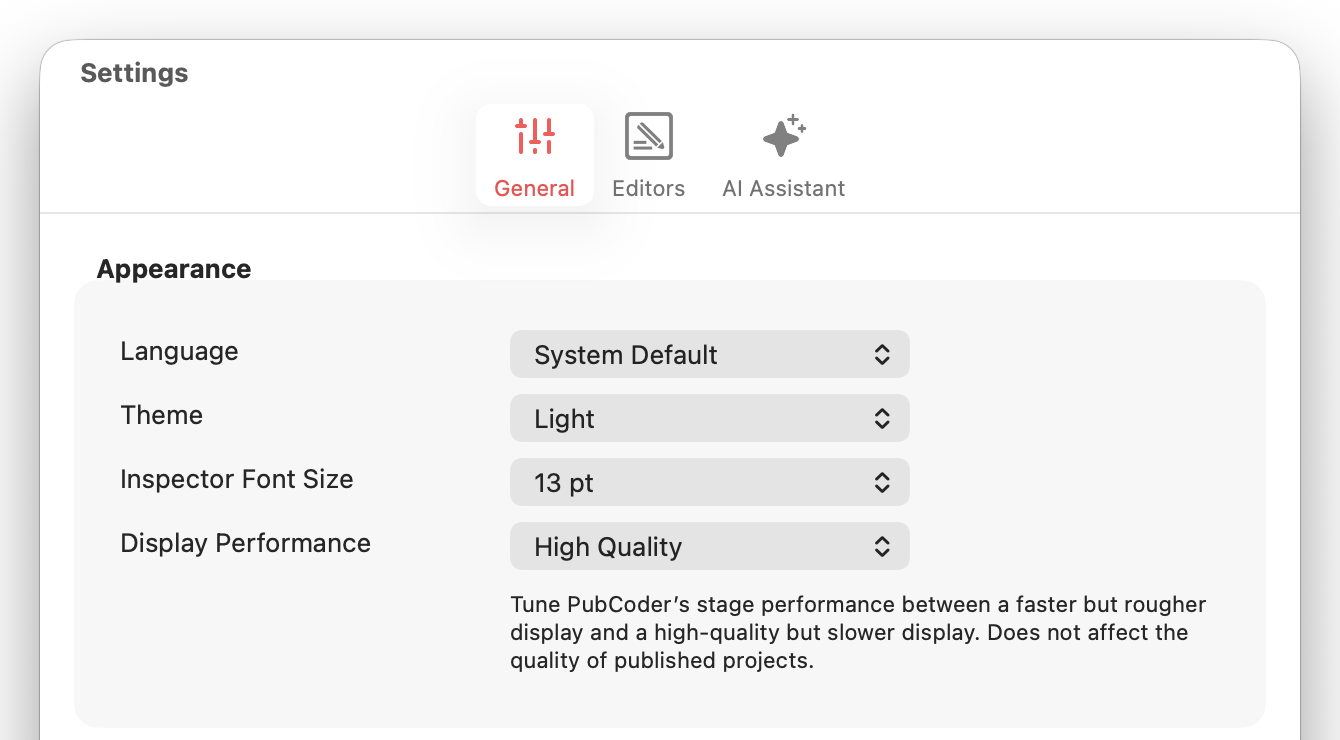
PubCoder follows the light or dark appearance of your system. To choose one yourself, open PubCoder’s settings (choose PubCoder ▹ Settings… on Mac or Edit ▹ Settings… on Windows from the menu bar) and set Theme in the General tab to System Default, Light or Dark: the change applies right away.
On Mac, you can also choose the Language of PubCoder’s interface: System Default, or one of English, Italian, German, French, Spanish and Chinese (Simplified). The new language applies when you restart PubCoder.
Older versions of PubCoder
If you’re running an old version of macOS or Windows you’ll need to download a compatible version of PubCoder here:
- PubCoder 5.6.3 for macOS 10.13, macOS 10.14 and macOS 10.15
- PubCoder 3.11 for Windows 7, Windows 8 and Windows 10 32-bit
- PubCoder 3.11 for macOS 10.10, macOS 10.11 and macOS 10.12
- PubCoder 3.2.2 for macOS 10.9
- PubCoder 2.5 for macOS 10.7 and macOS 10.8
Other versions of PubCoder can be downloaded from our updates page
