Introduction
PubCoder can turn a Word, RTF, Markdown or plain text document into fixed-layout pages: it creates the pages, blank or using a template page of your choice, and flows the text through them, so you don’t have to copy and paste the text page after page. It’s the quickest way to start a fixed-layout book from the manuscript an author sent you, then add illustrations, read aloud and interactivity.
To start a new project from a document, click Start from Word or Text in the New Project tab of the Start Window. To add a document to the project you’re working on, choose File ▹ Import from Word, TXT, RTF or Markdown… from the menu bar. You can also ask the AI Assistant to import a document for you.
PubCoder imports these documents, keeping:
- Word (
.docx): paragraphs, headings, bold, italic, line breaks, lists, links and tables. - RTF (
.rtf): paragraphs, bold and italic - Markdown (
.md): paragraphs and Markdown formatting, such as headings, bold, italic, lists, links and tables - Plain text (
.txt): paragraphs, separated by blank lines. If the file has no blank lines, each line becomes a paragraph
Images, footnotes and text boxes in Word documents are not imported. RTF documents keep only paragraphs, bold and italic: to keep their lists, links and tables, open them in Word and save them as .docx. Old Word documents (.doc) can’t be imported: open them in Word and save them as .docx.
Importing a document
Starting a new project from a document
- In the New Project tab of the Start Window, double-click Start from Word or Text (or select it and then click OK)
- Drag your document into the window, or click + to choose it, then click Continue
- Review the import settings and click Continue
- Choose the title, author, page size, orientation and language of the new project, as for any new project
- Click Continue: PubCoder creates the project and imports the document
Importing into an existing project
Choose File ▹ Import from Word, TXT, RTF or Markdown… from the menu bar and select the document. The Import Document window opens with the import settings: review them and click Import. Here you can also fill a template page you designed and choose where the new pages go.
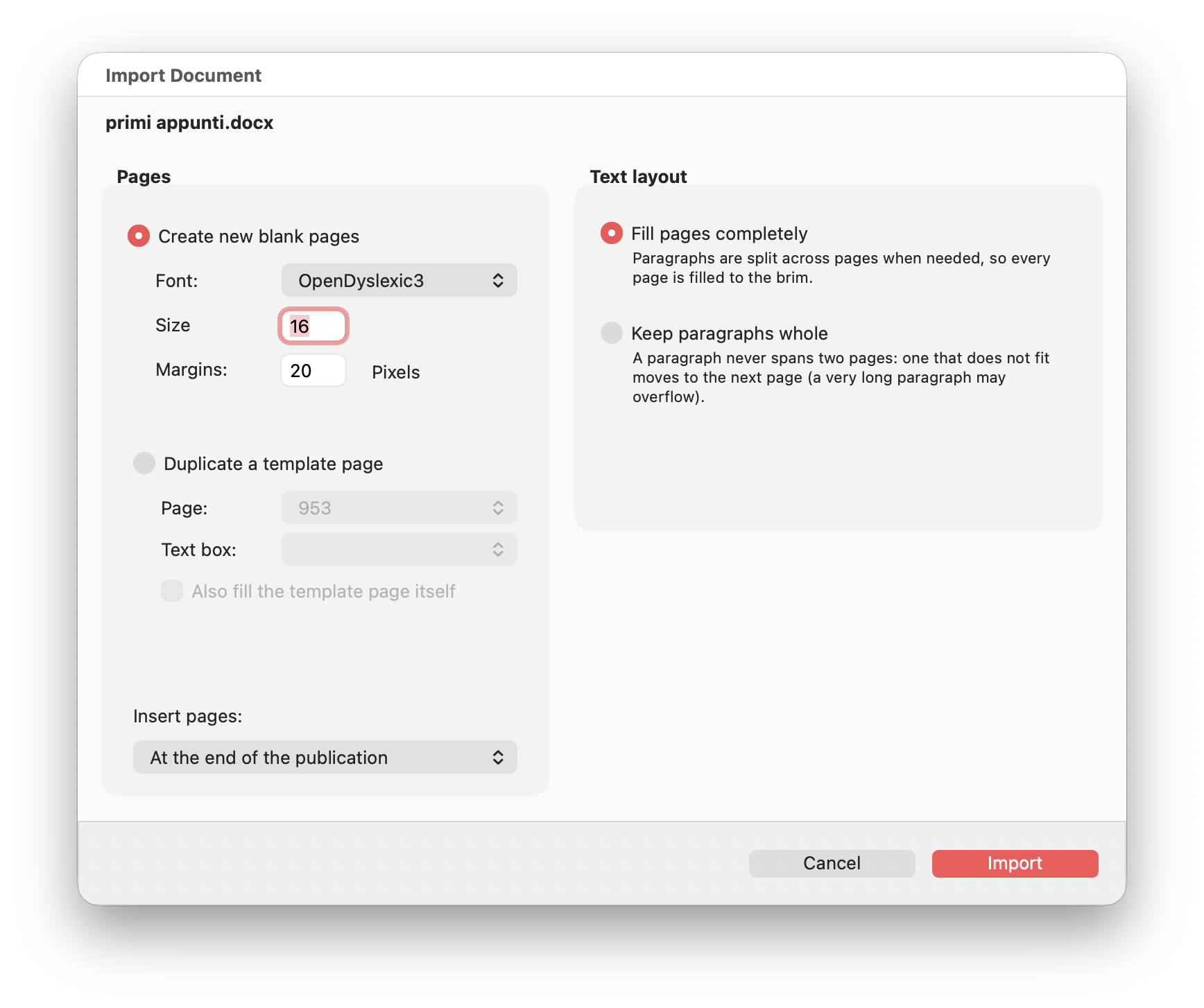
Import settings
- Pages defines the pages that receive the text:
- Create new blank pages: each new page gets one text box with the specified Margins, in pixels. Font and Size start from your project’s default text style: change them only if the imported text should look different from the rest of the project
- Duplicate a template page: available when you import into an existing project. Design a page first, with its background, decorations, page number and a text box for the text, then choose it in Page and the box to fill in Text box (the largest box is already selected). PubCoder copies the template page for every new page it needs. Turn on Also fill the template page itself to start the text on the template page too
- Text layout defines how the text is split between pages:
- Fill pages completely: paragraphs are split across pages when needed, so every page is full. Choose it for novels and long texts. A table is split only between two rows, never inside a row or its header, and its header row is not repeated on the next page
- Keep paragraphs whole: a paragraph never spans two pages, and one that does not fit moves to the next page. Choose it when each paragraph should stay together, for example in a picture book where every paragraph goes with an illustration. A list or table taller than the text box is split between its items or rows. A very long paragraph may still overflow its box
- Insert pages: only available when you import into an existing project, defines where the new pages go: At the end of the publication, After the current page or, with a template page, After the template page.
After the import
When the import completes, every new page has a text box filled with the document’s text. If you edit the text, change its size or change the size of the boxes, you can choose Edit ▹ Reflow Text from the menu bar to redistribute the text through the pages: PubCoder fills every box again and adds pages when needed (see Text Flows and Reflow).
The document import doesn’t create chapters: turn on Chapter Starts Here on the pages where your chapters begin, to build the table of contents.
Headings keep their level, but they take the look of your project’s text style: to make them stand out, give them a style with CSS. Tables from Word documents have the class SCDocumentTable, plus SCDocumentTableBorders when they have borders: use these classes to change their look with CSS.
If something could not be imported as it was, for example text that does not fit its box, PubCoder lists it when the import ends.
The whole import is a single step in your project’s undo history: to remove it, choose Edit ▹ Undo from the menu bar (⌘Z on Mac, Ctrl+Z on Windows). You can also click Stop while the import is running: the publication goes back to how it was.
Troubleshooting
| “The import failed.” with “not a valid .docx file” | The file is damaged, protected by a password or not a Word document: open it in Word and save it again as .docx |
The document is a .doc or .markdown file and can’t be selected |
Save a .doc file as .docx in Word. Rename a .markdown file to .md |
| Some text does not fit its box | A heading, a table row or a very long paragraph is taller than the text box: make the box bigger or the text smaller, then choose Edit ▹ Reflow Text from the menu bar |
| The Upgrade to PubCoder Pro window opens | Importing documents is a PubCoder Pro feature: try PubCoder Pro or upgrade your subscription from that window |
If you need help, contact us.
