Introduction
In PubCoder, text boxes in the same page or across multiple pages can be linked together in a chain to form a Flow.
When you edit the text, change its size or change the layout of the boxes, Reflow Text moves the text through the chained boxes again: it fills every box, moves what does not fit to the next box of the flow and adds pages when the text needs more room.
When you import a Word, RTF, Markdown or text document or an EPUB, the text boxes PubCoder creates already form a flow. You can also set up flows on your own pages.
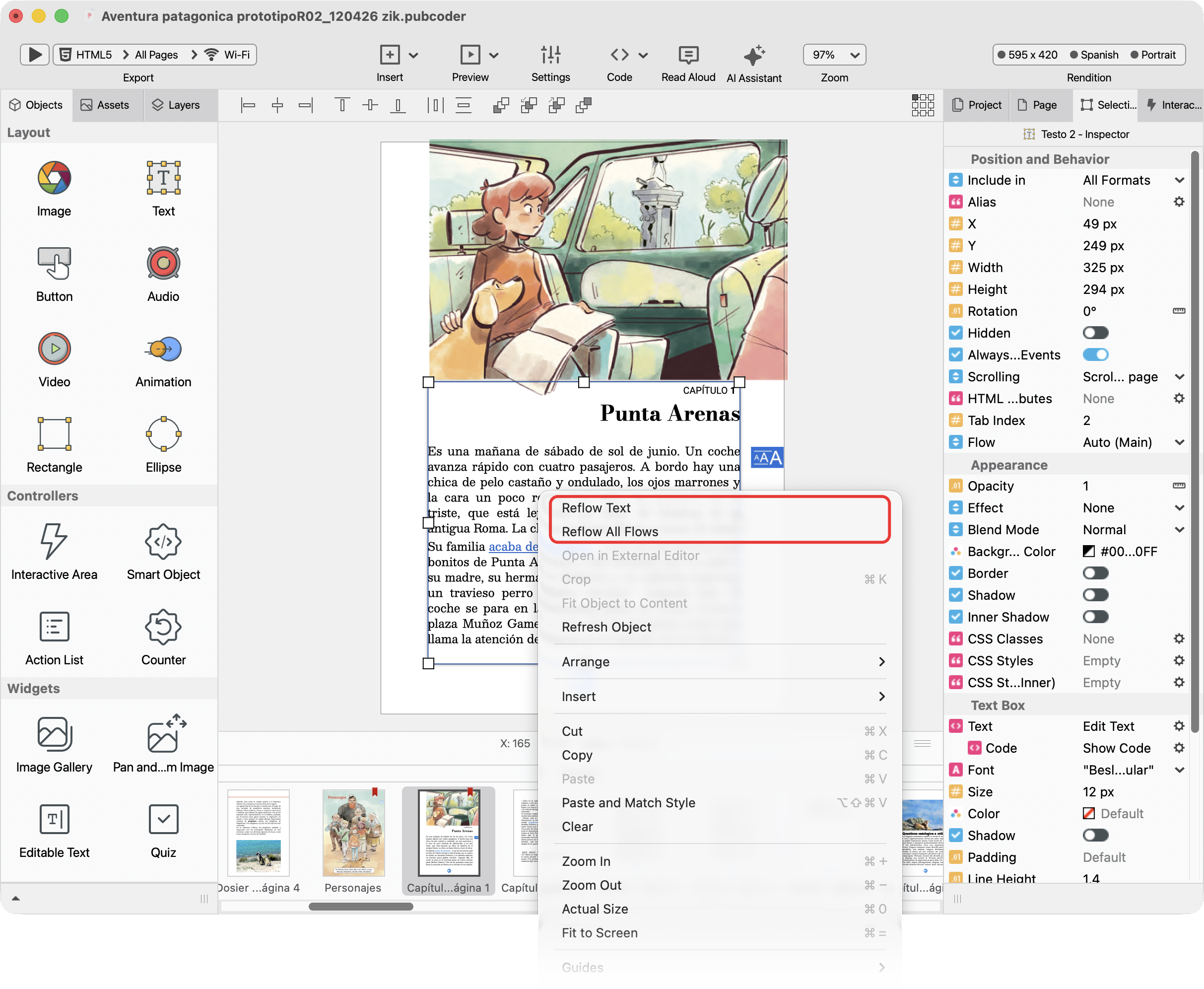
Setting up text flows
The Flow of a text box
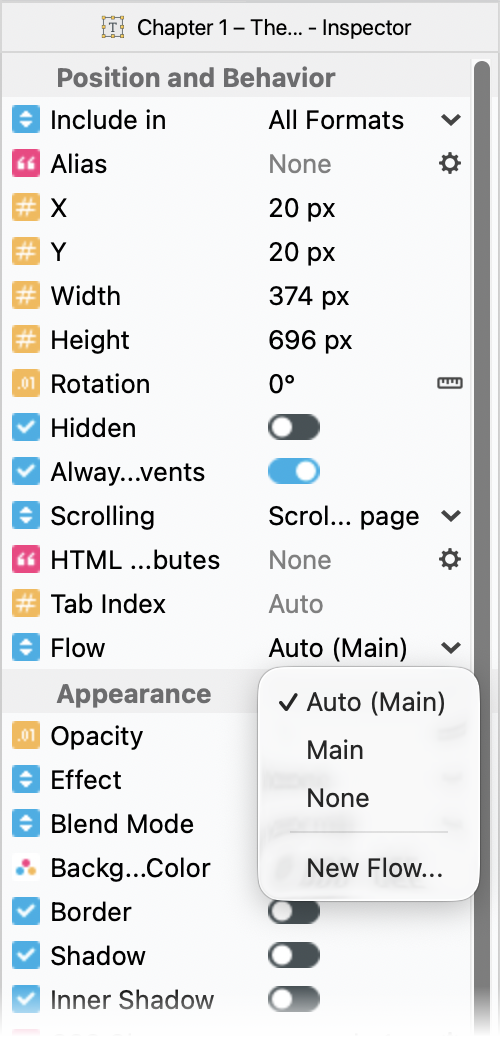
Every text box has a Flow property, in the Position and Behavior section of the Selection Inspector, to let you chain the box with other boxes in a flow:
| Auto | On each page, the biggest text box set to Auto or Main that covers at least 10% of the page belongs to the main flow: the inspector shows Auto (Main). Smaller Auto boxes belong to no flow and show Auto (None). This way the main text of each page flows, while titles, captions and labels stay as they are, without any setting |
| Main | The text box always belongs to the main flow |
| None | The text box never belongs to a flow: reflowing never changes its text |
| New Flow… | Creates a flow for a second text that runs on its own or one that you want to manage manually, for example translations in a bilingual book. The flows you create are listed in the menu while at least one text box uses them |
When two or more text boxes on the same page belong to the same flow, an Index property appears below Flow: the text goes through the boxes of the page from the smallest index to the largest, for example from the left column to the right column. When you change the index of a box, PubCoder renumbers the other boxes of the page automatically.
Flow and Index are available on text boxes in regular pages, not on overlay pages.
Page breaks
To end the text of a page at a precise point, for example at the end of a scene, insert a page break: while you edit the text, choose Insert Page Break from the additional functionalities menu of the text editor toolbar. The page break appears as a dashed line while you edit the text, and it is never visible in your exported publication.
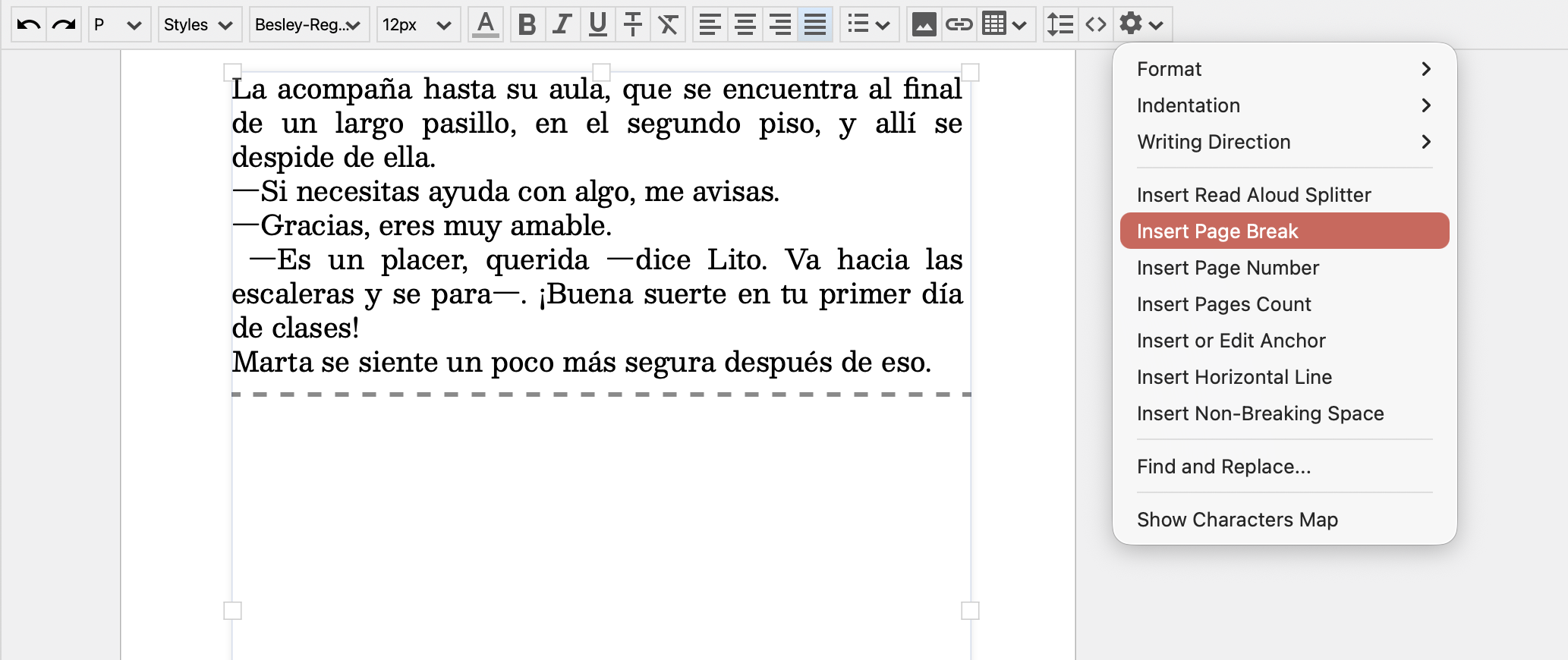
A page break doesn’t move the text by itself: when you later reflow, the text after the page break always continues in the next page. Page breaks in Word documents are imported as page breaks.
Reflowing text
You can reflow text with two commands, from the Edit menu or by right-clicking on the stage:
- Reflow Text: reflows the flow of the selected text box, starting from the current page
- Reflow All Flows: reflows every flow, from the current page to the end of the project
Before reflowing, PubCoder explains what the command does and asks for confirmation: turn on Do not ask me again if you don’t need the explanation anymore.
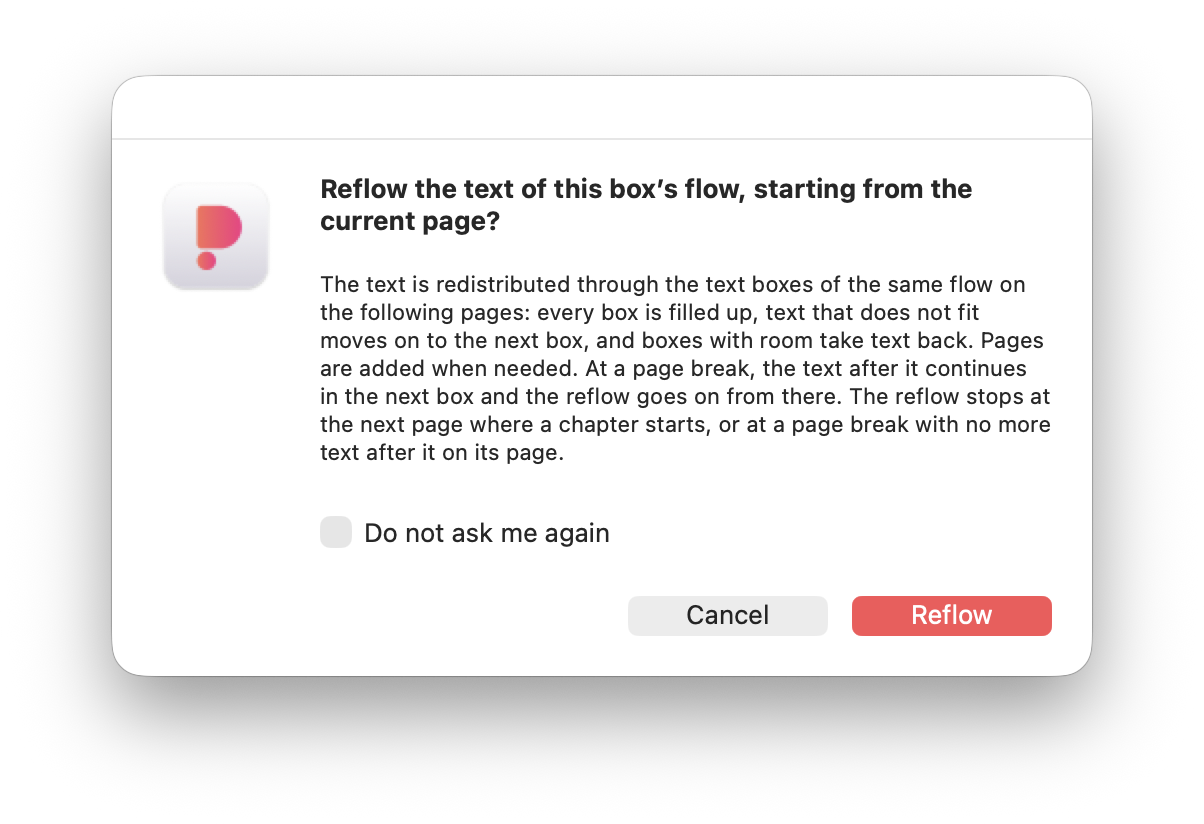
PubCoder then fills every text box of the flow up to the brim, page after page, and moves what does not fit to the next box in the flow. Boxes with available room take text back from the following ones (unless a page break is found), and boxes the text no longer reaches are emptied.
When there is still text left, PubCoder adds pages: each new page is a copy of the last page of the flow, with all its objects and actions, inserted right after it.
Reflow Text stops before the next page where a chapter starts (a page with Chapter Starts Here turned on in the Page Inspector, see Building a Table of Contents), or at a page break with no more text after it on its page. Reflow All Flows goes on through chapters until the end of the project.
If the reflow leaves some pages with empty text boxes, PubCoder asks whether to delete them: click Delete Pages or Keep Pages. The whole reflow is a single step in your project’s undo history: choose Edit ▹ Undo from the menu bar (⌘Z on Mac, Ctrl+Z on Windows) to go back. Deleting the empty pages is a separate step that can be undone on its own.
You can also ask the AI Assistant to reflow the text: it always asks for confirmation before doing it.
Notes and Limitations
- Reflowing changes the current rendition only: to reflow the text of another language or page format, switch to that rendition and reflow again
- The text is measured with the CSS of the current page. If some pages of the flow have their own page CSS, PubCoder warns you that their text may fit slightly differently
- Headings, preformatted text, figures, images and videos are never split between two boxes, and a heading is never left alone at the end of a box. A table is split only between two rows: never inside a row or its header, and never across a cell that spans several rows. Its header row is not repeated in the next box. When an element that can’t be split, or a table row, is taller than its box, it overflows, and PubCoder lists the boxes where the text does not fit
- Internal links to anchors coming from EPUB or Word import are automatically recalculated, links to pages are not
- Read Aloud audio and timing belong to the page, so after a reflow they may no longer match its text: set up Read Aloud when the text is final, or set it up again on the pages whose text changed
- Chinese and Japanese text is split between characters, never before closing punctuation
- A scrolling text box is filled only up to its visible area
Troubleshooting
| Reflow Text is disabled | Select exactly one text box that belongs to a flow, on a regular page (not an overlay page) |
| “From the current page on, no text box belongs to a flow.” | Set the Flow of the text boxes to Main or to one of your flows. With Auto, a text box belongs to the main flow only if it’s the biggest on its page and covers at least 10% of it |
| “The text already fits its boxes: there is nothing to change.” | Nothing to do: the text is already distributed through its boxes |
| “The text could not be reflowed. Nothing was changed.” | Read the detail below the message. For example, if the text would need more than 2000 new pages, the text box is probably too small for its content |
| Some text still does not fit its box | A heading, a table row, an image or another element that can’t be split is taller than the box: make the box bigger or the element smaller, then reflow again |
If you need help, contact us.
